


Personalizing Laptops with UV DTF Decals: A Practical Guide
The best laptop decal starts with a surface check, not a design file. A finish that looks smooth may still be textured or coated in a way that affects adhesion, and a poorly chosen spot can crowd vents, hinges, or ports. Personalizing laptops with UV DTF decals takes a little planning before you apply anything.
If you’re concerned about peeling, misalignment, or a decal that’s hard to remove, those are smart things to consider. UV DTF Decals are designed for smooth, hard, non-porous surfaces, and they’re not easy to peel off or reuse. The right placement and careful application matter.
This guide will help you assess your laptop’s finish, choose a design and location, and apply a decal with careful preparation. You’ll also see how UV DTF Decals compare with other decoration options and which areas to avoid so your design doesn’t interfere with everyday use. A few checks upfront can make the process more precise and the finished look more polished.
Key Takeaways
- Personalizing laptops with UV DTF decals works best when the design fits the usable lid space and leaves openings clear.
- Compare UV DTF Decals with laptop skins, vinyl decoration, and an undecorated finish to choose the coverage and look that suit your project.
- Power down the laptop, inspect the surface, and follow the decal’s supplied instructions for positioning and application.
- Plan the surface, placement, and artwork before applying a decal, then explore MoreTranz UV DTF Decals for hard-surface personalization.
Can You Personalize a Laptop with UV DTF Decals?
Yes, if the laptop’s surface and the planned placement are suitable. UV DTF Decals transfer printed designs onto hard surfaces. Laptop skins, by comparison, are typically larger adhesive coverings for part or most of a laptop’s exterior. A decal can create a focused accent or graphic, while a skin offers broader coverage. Either way, assess the device’s finish and layout before applying anything.
A shell that feels smooth isn’t automatically suitable. Texture can be subtle, and coatings vary between laptop models and product lines. A surface may feel slick but still have a finish that affects adhesion. UV DTF Decals are intended for smooth, hard, non-porous surfaces, not textured, flexible, or rubberized materials. Review the laptop manufacturer’s care guidance before applying a decal, especially if it describes restrictions on adhesives or surface treatments.
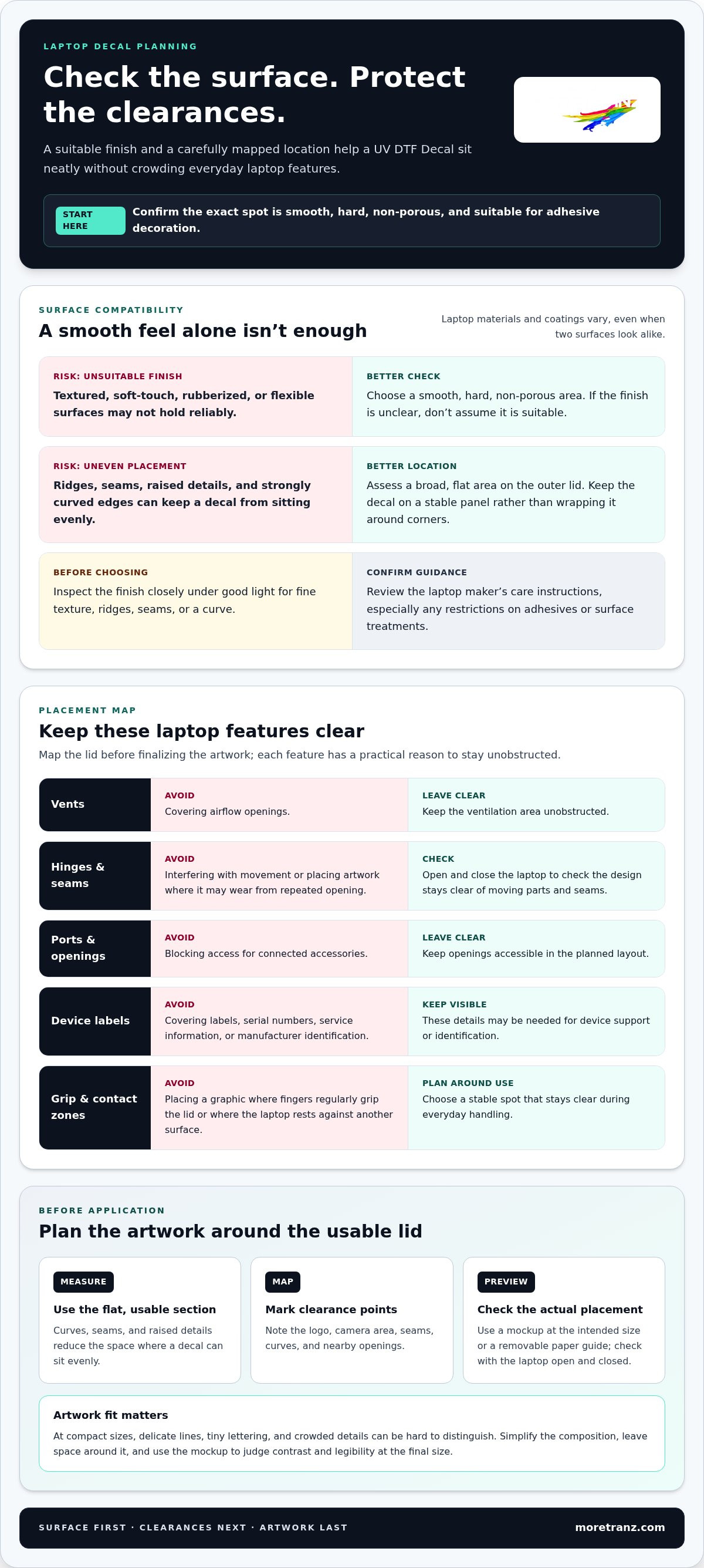
Key compatibility check: confirm the exact area is smooth, hard, non-porous, and suitable for adhesive decoration before choosing a decal. If the finish is textured, soft-touch, rubberized, or unclear, don’t assume it will hold reliably.
Which laptop surfaces may be suitable?
A broad, flat area on the outer lid is often easiest to assess because it provides a clear view of the finish and room to position artwork. Inspect it closely under good light. Look for fine texture, ridges, seams, soft-touch coatings, or a curve that could keep part of the decal from sitting evenly. Laptop shells use different materials and finishes, so one model’s surface isn’t proof that another will behave the same way. Check the maker’s care instructions and choose an area that remains flat and firm.
Skip textured sections and flexible silicone or rubberized cases. Strongly curved edges are also poor placement zones: the design may not sit flush, and edges are more exposed to handling. Keep the decal on a stable exterior panel rather than wrapping it around corners.
Which areas should a design avoid?
Map the laptop before finalizing artwork. Leave clear space around:
- Vents, which need to remain unobstructed for airflow.
- Hinges and moving parts, where a decal could interfere with movement or wear from repeated opening.
- Ports and openings, so accessories remain accessible.
- Labels, serial numbers, service information, and manufacturer identification, which may be needed for device support or identification.
A clear layout protects access and everyday handling while keeping the design intentional. Avoid placing a graphic where fingers regularly grip the lid or where the laptop rests against another surface. Before applying it, open and close the device to check that the planned design stays clear of seams and moving parts. This quick review helps personalizing laptops with UV DTF decals start with a suitable location, not just attractive artwork.
How to Plan a Laptop Design Around UV DTF Decals
A strong laptop design is made to fit the device, not squeezed onto it after the artwork is finished. First identify the usable flat area, note nearby features, and decide how much of the lid should remain visible. Planning this way makes the design more deliberate and helps prevent it from crowding the laptop’s details.
Measure and map the laptop lid
Measure the flat, usable section rather than the entire exterior panel. Curved edges, seams, and raised details can reduce the space where a decal will sit evenly. Sketch the available area on paper or in a design file, then mark the logo, camera area, seams, curves, and nearby openings. Measure carefully, especially if the graphic needs to align with an edge or another visual feature.
Check the layout with the laptop both open and closed. A design that looks centered on the closed lid might sit awkwardly beside a hinge or become partly hidden when the screen is raised. Make a mockup at the intended size, or cut a removable paper guide and position it on the lid. This preview makes scale and spacing issues easier to spot before application.
Measure the usable area, map every clearance point, and preview the placement before committing to the design.
Prepare artwork for a clean result
Keep the artwork clear and easy to read at its final size. On a compact lid, delicate lines, tiny lettering, and crowded details can be hard to distinguish. Simplify where needed: use a bold central shape, a short wordmark, or a few graphic elements rather than shrinking a busy composition. Leave enough space around the design so it feels intentional instead of pressed against the lid’s edges.
Contrast affects how clearly the design reads. A light graphic may stand out on a dark surface, while a darker design may be clearer on a light finish. Use your mockup to judge the combination at actual size and from a normal viewing distance. Check how the design balances with the laptop’s existing logo and proportions. A centered graphic can feel orderly; an off-center accent can work too, provided it looks deliberate.
If your file needs cleanup or conversion before production, MoreTranz offers artwork preparation services. Use the measurements you took to guide the final layout, and don’t assume artwork that looks large on a screen will remain legible when reduced.
Once the design and placement look right in a mockup or paper guide, explore the MoreTranz Sample Pack as you plan your project. Keep your layout as a reference when you prepare the surface and apply the decal.
UV DTF Decals vs. Laptop Skins and Other Decoration Options
The right decoration method depends on the laptop’s finish and the look you want. A focused graphic, broad coverage across the lid, and an untouched original finish are different goals. Compare coverage, layout flexibility, application, and appearance before choosing. No method removes the need to assess the surface and follow the relevant product instructions.
| Option | Coverage | Layout flexibility | Application | Intended look |
|---|---|---|---|---|
| UV DTF Decals | Selected areas or individual graphics | Arrange artwork in a planned composition | Transfer decoration applied to a suitable surface | Distinct accents, logos, or custom graphics |
| Laptop skin | Often broader coverage across a panel | Designed around the covered area | Adhesive covering placed over the laptop exterior | A coordinated or more extensive surface treatment |
| Vinyl decoration | Varies with the graphic or cut design | Can be arranged as individual design elements | Applied according to the material’s instructions | Simple shapes, lettering, or graphic accents |
| No added decoration | No added coverage | No applied artwork to position | No decoration application | The laptop’s original appearance |
When a decal suits the design
Choose UV DTF Decals when you want specific artwork on selected exterior areas rather than a design covering most of the lid. Individual graphics let you build a deliberate arrangement, such as a single central mark or a few separated accents. That flexibility also means you’ll need to plan spacing and alignment so the pieces read as one composition. The application method can’t make a textured or otherwise unsuitable area a good surface.
When a skin or undecorated finish may fit better
A laptop skin may suit a goal of broader panel coverage, while leaving the laptop undecorated preserves its existing appearance without adding a graphic layer. Consider how much of the original finish you want visible, whether you prefer a unified panel treatment or selected artwork, and how you feel about changing the look later. Review care guidance and application instructions for the option you choose, since materials and finishes can behave differently.
For example, a small graphic can work when you want the laptop’s original finish to remain part of the design. A skin may be a better match for a more continuous visual treatment, while no decoration is a straightforward choice if preserving the factory appearance matters most. Vinyl decoration can also offer flexibility for graphic elements, but its application and appearance depend on the material and design.
Use the comparison as a decision tool, not a universal ranking. When personalizing laptops with UV DTF decals, start with the laptop surface, then match the method to your preferred coverage, appearance, future changes, and care requirements.
How to Apply UV DTF Decals to a Laptop Carefully
A careful application starts before the decal touches the laptop. Work slowly, use the decal’s supplied instructions as your guide, and follow the laptop manufacturer’s care guidance for cleaning. Transfer methods can differ, so don’t assume steps for one product apply to another.
Surface preparation and careful placement guide the result. Set up a clean workspace, confirm the planned position, and keep the decal clear of vents, ports, hinges, seams, and other functional areas.
Prepare the device and work area
Make room to handle the decal without brushing it against tools or clutter. Keep the laptop stable and the intended application area easy to reach. Avoid excess moisture, and use only cleaning products and methods allowed by the laptop manufacturer. Let the surface dry fully before proceeding, following the device and decal instructions.
- Power down. Shut the laptop down and disconnect its power cable and accessories before decorating the exterior. This gives you a stable device to handle and keeps cords out of the work area.
- Inspect. Recheck the surface and intended location. Look for dust, residue, damage, or texture that could affect contact, and confirm the decal won’t cover a vent, port, hinge, seam, or label.
- Prepare. Clean only as the laptop manufacturer allows. Use a suitable method without soaking the device, then wait until the area is completely dry. Don’t substitute a familiar cleaning product for the manufacturer’s care guidance.
- Position. Use your mockup or placement guide to check alignment and spacing. Compare the design with nearby edges and features, then make sure it sits level before the transfer contacts the surface.
- Apply. Follow the decal’s supplied instructions for its specific application method. Keep the design aligned as you work, applying it carefully across the transfer as directed. Avoid rushing or repositioning it contrary to the instructions.
- Review. Check the finished design and its edges without pulling or lifting the decal. Confirm that nearby openings remain clear and that the decal hasn’t crossed onto a seam or moving part. Follow the supplied guidance for any final pressing or handling steps.
Position, apply, and inspect the decal
Alignment deserves one last check before the transfer makes contact. A small shift can change the balance of a compact design, and correcting the position after application begins may not be part of the product’s instructions. Keep the placement guide nearby, but remove it before applying the decal if it would interfere with the transfer.
After application, inspect the area in good light. Don’t use a tool or cleaner to fix an edge unless the decal instructions and laptop care guidance allow it. Keep the device powered down while you complete the review, then return it to normal use according to the supplied directions.
MoreTranz offers UV DTF Decals for creators exploring hard-surface decoration, along with a sample pack to help you consider your project.
Explore MoreTranz UV DTF Decals for Your Laptop Project
A well-planned laptop project follows a clear sequence: assess the exterior finish, map the usable placement, prepare artwork to fit, then apply the decal carefully. Each decision shapes the next. Confirm the surface and care requirements before finalizing the design, so your creative choices suit the laptop.
What to settle before choosing a transfer
Before committing to artwork, check the laptop’s exterior finish and care guidance, then measure the usable flat area. A graphic that fits on paper may compete with the logo, sit too close to an edge, or crowd nearby openings once it is on the device.
- Confirm the finish and its care requirements.
- Set the artwork dimensions to suit the available area.
- Keep vents, ports, hinges, seams, and identification labels unobstructed.
- Choose between selected graphics, broader coverage, or preserving the original finish.
Consider how much of the original finish you want visible, whether you prefer a focused design or broader coverage, and how important future changes are to you. Match the decoration approach to the surface and your intended look.
Take the next step with Transfers by MoreTranz
Transfers by MoreTranz offers UV DTF Decals for custom hard-surface decoration. Assess the surface, settle the placement, prepare artwork to the measured space, and follow the decal’s application instructions. Transfers by MoreTranz serves 14,000 creators.
If you’re still exploring your project, the Transfers by MoreTranz Free Sample Pack offers a way to explore before settling on a plan. Keep your laptop’s finish, desired coverage, and intended look in view as you decide whether UV DTF Decals fit your project.
Make Your Laptop Design Your Own
Personalizing laptops with UV DTF decals can give a device a distinct look when the surface and design are a good match. Treat the project as a considered design choice: decide what you want the laptop to express, then choose a decoration approach that fits your preferences for coverage and future changes.
MoreTranz offers UV DTF Decals for custom hard-surface decoration. If you’re still shaping your idea, the Free Sample Pack is a way to explore MoreTranz offerings before planning your project. Keep your intended design and use in mind as you decide what to create.
Start with your design idea, then explore the MoreTranz Free Sample Pack to plan your project.
Frequently Asked Questions
Can you put UV DTF Decals on a laptop?
Yes, if the specific exterior area is smooth, hard, non-porous, and suitable for adhesive decoration. A flat section of the lid may be a better candidate than a textured coating or curved edge, but appearance alone can’t confirm compatibility. Check the manufacturer’s care guidance for your model and finish, and don’t apply a decal if the guidance warns against adhesives or surface treatments.
Will UV DTF Decals damage a laptop?
They may affect a laptop’s finish, particularly if the surface isn’t suited to adhesive or the decal is removed improperly. The outcome can depend on the coating and removal method, so there’s no universal assurance that application or removal will leave every finish unchanged. Review the manufacturer’s care instructions before proceeding. If preserving the original surface is your priority, leaving the device undecorated avoids adding an adhesive decoration.
How do you apply UV DTF Decals to a laptop?
Power down and disconnect the laptop, then prepare the exterior only as its manufacturer permits. Let the surface dry, use a placement guide to check alignment, and follow the decal’s supplied instructions for its specific transfer method. Keep the design away from functional openings and seams. Don’t improvise with extra heat, cleaners, or tools; product instructions and laptop care guidance should direct each step.
Can UV DTF Decals go on a plastic laptop?
Possibly. Plastic as a broad material category doesn’t tell you whether a particular laptop surface will accept a decal. A smooth, firm, non-porous plastic panel may be more suitable than a textured, soft-touch, or flexible surface, but coatings and finishes vary. Check the manufacturer’s care guidance for your laptop and assess the exact spot rather than assuming every plastic shell has the same properties.
Can you remove UV DTF Decals from a laptop?
Removal can be difficult because UV DTF Decals are intended as a permanent decoration and aren’t designed to peel off for reuse. The removal approach described for these decals uses gentle heat to soften the adhesive, followed by careful lifting with a plastic scraper. Laptop finishes can be sensitive, so consult the device’s care guidance first, work cautiously, and avoid solvents unless the manufacturer allows them.
Where should you place a decal on a laptop?
Choose a suitable flat exterior area where the design won’t interfere with the laptop or conceal useful information. A clear section of the lid may work better than a spot near a hinge or ventilation opening. Keep the decal away from ports, seams, labels, serial numbers, and manufacturer identification. Before application, check that the design remains clear of those areas with the laptop open and closed.
Are UV DTF Decals the same as laptop skins?
No. UV DTF Decals are transfer decorations for placing selected artwork on a surface. Laptop skins are coverings intended to span a larger portion of the exterior panel. A decal can suit a focused graphic, while a skin may fit a preference for broader coverage. Compare the intended look and care considerations, and remember that either approach depends on whether the laptop’s particular finish is appropriate for adhesive decoration.